Lab3-Part1
Simple streaming Example
In this example we learn how to use Xilinx AXI_DMA to create streaming interfaces for and IP.
1)Vivado_HLS: Generating RTL code from C/C++ code
In this section you learn how to create a project in Vivado_HLS, synthesis your code, and generate RTL.
1.1)Download code and create a Vivado_HLS project
Download and unzip streamMul.zip. Generate your project using the provided script.tcl file:
Linux: open a terminal, make sure your environment is set, navigate to streamMul folder, and run the following
$ vivado_hls script.tcl
Windows: open vivado_hls command line and run the following
$ vivado_hls script.tcl
Now can open you your project in Vivado_HLS. Your code is not complete!, modify your code to become same as the following:

INPUT and OUTPUT ports are set to axis interfaces for streaming and length is set to s_axilite for a non-streaming interface. axis_t is a struct defined in the header file, the 1-bit last is required for axis interfaces.
1.2) Generate RTL code and export it
Click on Run C Synthesis to generate RTL code. After it is done, you can check your resource utilization and timing report. Your latency is unknown (?) because your loop size (length) is a variable.

Now you can export your RTL code by clicking on Export RTL:
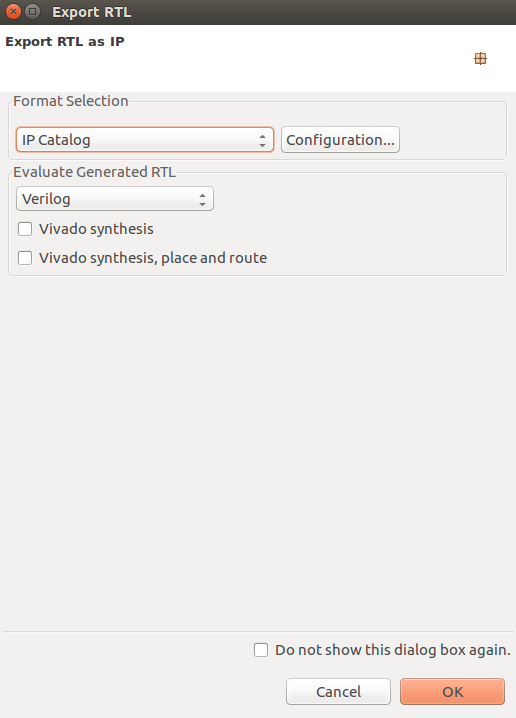
After exporting is done, you can close and exit from Vivado_HLS.
2) Vivado: Generating bitstream from RTL code
In this section we import our RTL code from last section, add some required IPs, and generate our bitstream
2.1) Create a new Vivado project
Open your Vivado tool and create a new project. Select an appropriate location for your project and leave the default project name as is (project_1).
Select RTL Project and check Do specify not sources at this time.
Select xc7z020clg400-1 for your part:
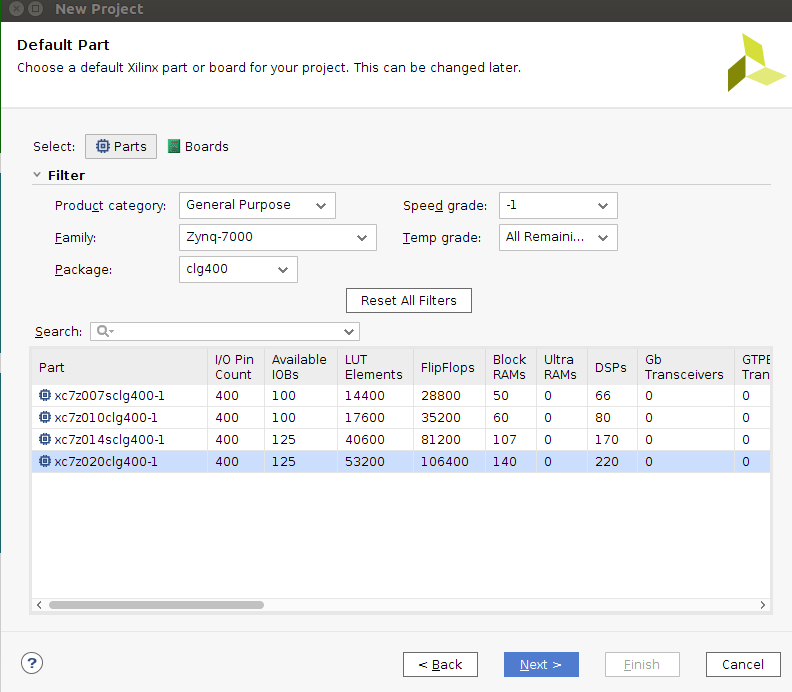
2.2) Import RTL code
Under Flow Navigator, click on IP Catalog. Right click on the opened window and select Add Repository. Navigate to your Vivado_HLS project > solution1 > impl > ip and select it:
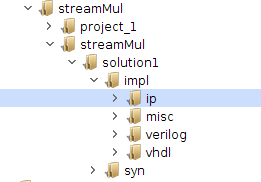
2.3) Add IPs to your design
Under Flow Navigator, click on Create Block Design. Leave the design name as is (design_1). In the newly opened window you can add IPs by clicking on the plus sign.
Add ZYNQ7 Processing System to your design:
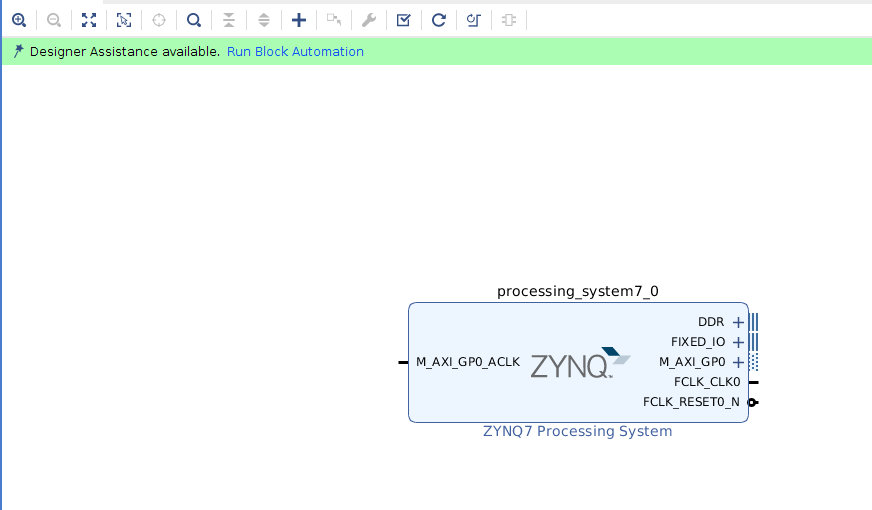
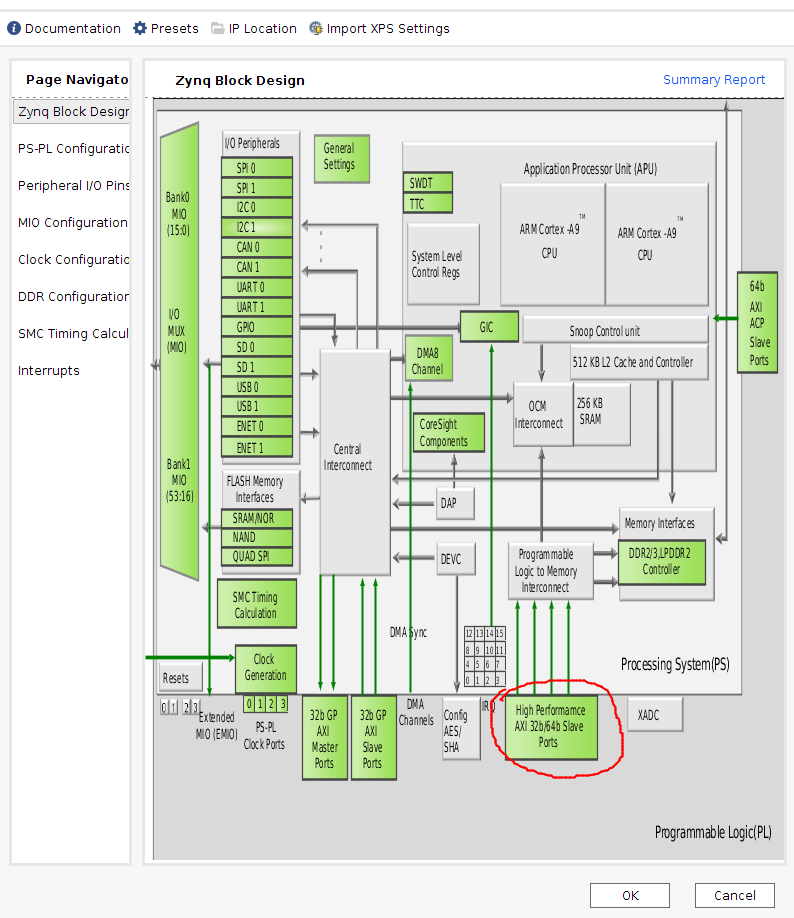
Double click on ZYNQ7 IP to customize it. In the opened window, double click on High Performance AXI 32b/64b Slave Parts:
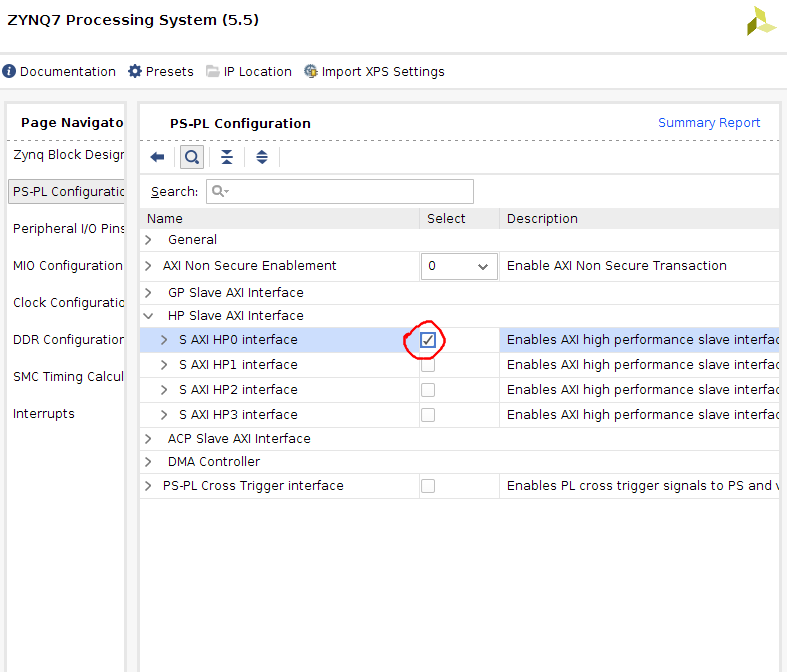
Select and check S AXI HP0 interface:
Add a Smul to your design and rename it to smul:

Add a AXI Direct Memory Access to your design and rename it to smul_dma. Double click on your AXI DMA and change the following parameters: 1) uncheck Enable Scatter Gather Engine. 2) Change Width of Buffer Length Register to 23:

Add a Constant to your design
2.4) Manual connections
Connect the following ports:
smul::OUTPUT_r to smul_dma::S_AXIS_S2MM
smul_dma::M_AXIS_MM2S to smul::INPUT_r
xlconstant_0 to smul::ap_ctrl::ap_start

2.5) Automatic connections
Now you can leave the rest of the connections to the tool. There should be a highlighted strip on top of your diagram window.
1- Click on Run Block Automation
2- Click on Run Connection Automation and select all
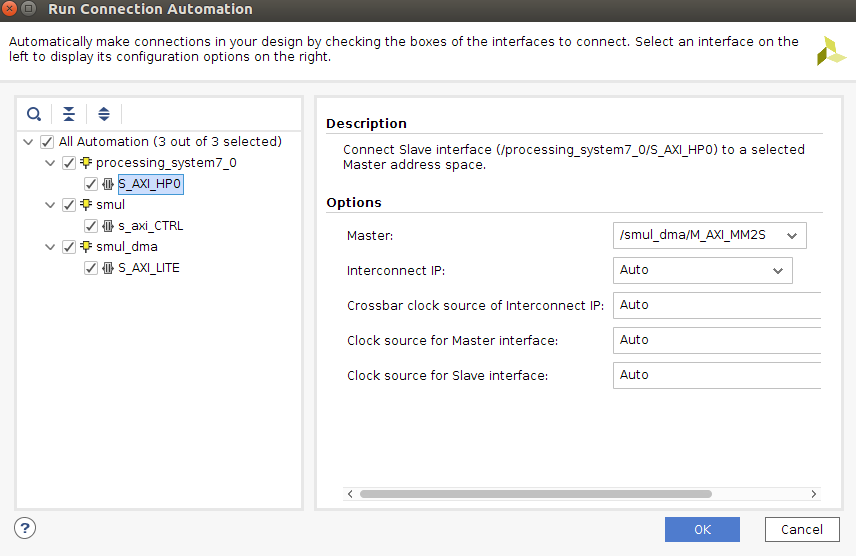
3- IMPORTANT! you have to click again on Run Connection Automation
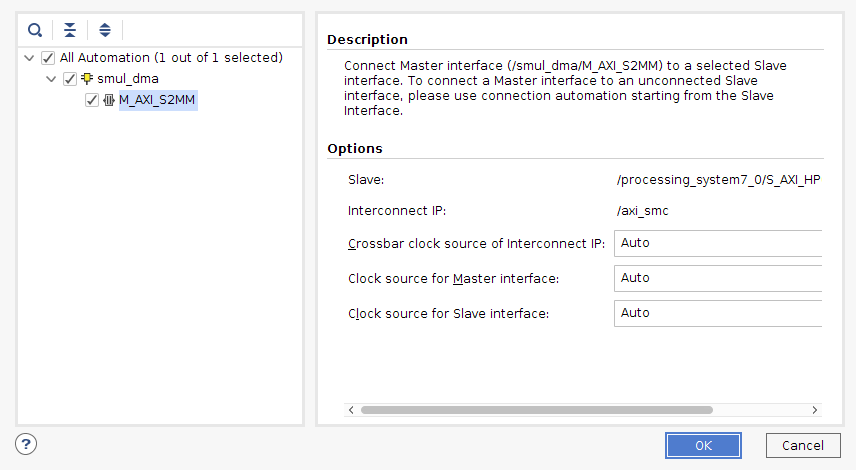
At this point your design should look like this:

2.6) Generate bitstream
1- Save your design CTRL+S or File > Save Block Design.
2- Validate your design: Tools > Validate Design
3- In Sources, right click on design_1, and Create HDL Wrapper. Now you should have design_1_wrapper.
4- Generate bitstream by clicking on Generate Bitstream in Flow Navigator
2.7) Note required addresses and export block design
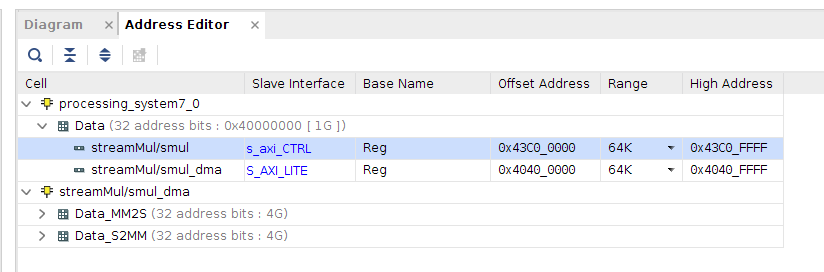
After bitstream generating process is done, open Address Editor from window menu.
Note that smul address is 0x43C00000, we need this address in our host program for sending length data.
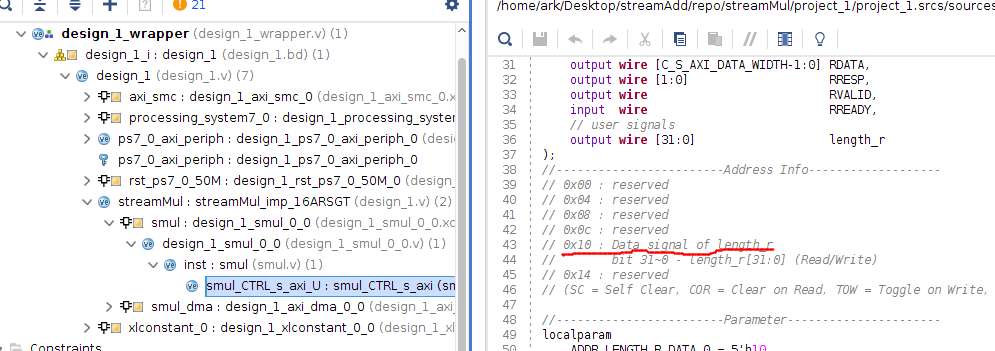
In sources, expand design_1_wrapper::design_1::design_1::streamMul::smul::design_1_smul_0_0::inst : smul, double click on smul_CTRL_s_axi_U, and note the address for length_r is 0x10. We need this address in our host program.
Export your block design from File > Export > Export Block Design and name it smul.tcl. This file includes all of your hardware addresses and describes your design for our host program.

Copy your project directory > project_1 > project_1.runs > impl_1 > design_1_wrapper to your project directory > project_1 and rename it to smul.bit. You should have both smul.tcl and smul.bit.
You can close and exit from Vivado tool.
3) Host program
In this section we use python to test our design
3.1) Move your files
Create a new folder in your PYNQ board and move both smul.tcl and smul.bit into it.
3.2) Python code
Create a new Jupyter notebook and run the following code to test your design:
import time
from pynq import Overlay
import pynq.lib.dma
from pynq import Xlnk
import numpy as np
from pynq import MMIO
import random

ol = Overlay('/home/xilinx/jupyter_notebooks/smul/smul.bit') # check your path
ol.download() # it downloads your bit to FPGA
dma = ol.streamMul.smul_dma # creating a dma instance. Note that we packed smul and smul_dma into streamMul
sadd_ip = MMIO(0x43c00000, 0x10000) # we got this IP from Address Editor
xlnk = Xlnk()
length = 11

in_buffer = xlnk.cma_array(shape=(length,), dtype=np.int32) # input buffer
out_buffer = xlnk.cma_array(shape=(length,), dtype=np.int32) # output buffer

samples = random.sample(range(0, length), length)
np.copyto(in_buffer, samples) # copy samples to inout buffer

sadd_ip.write(0x10, length) # we got this address from Vivado source
t_start = time.time()
dma.sendchannel.transfer(in_buffer)
dma.recvchannel.transfer(out_buffer)
dma.sendchannel.wait() # wait for send channel
dma.recvchannel.wait() # wait for recv channel
t_stop = time.time()
in_buffer.close()
out_buffer.close()
print('Hardware execution time: ', t_stop-t_start)
for i in range(0, length):
    print('{}*2 = {}'.format(in_buffer[i], out_buffer[i]))